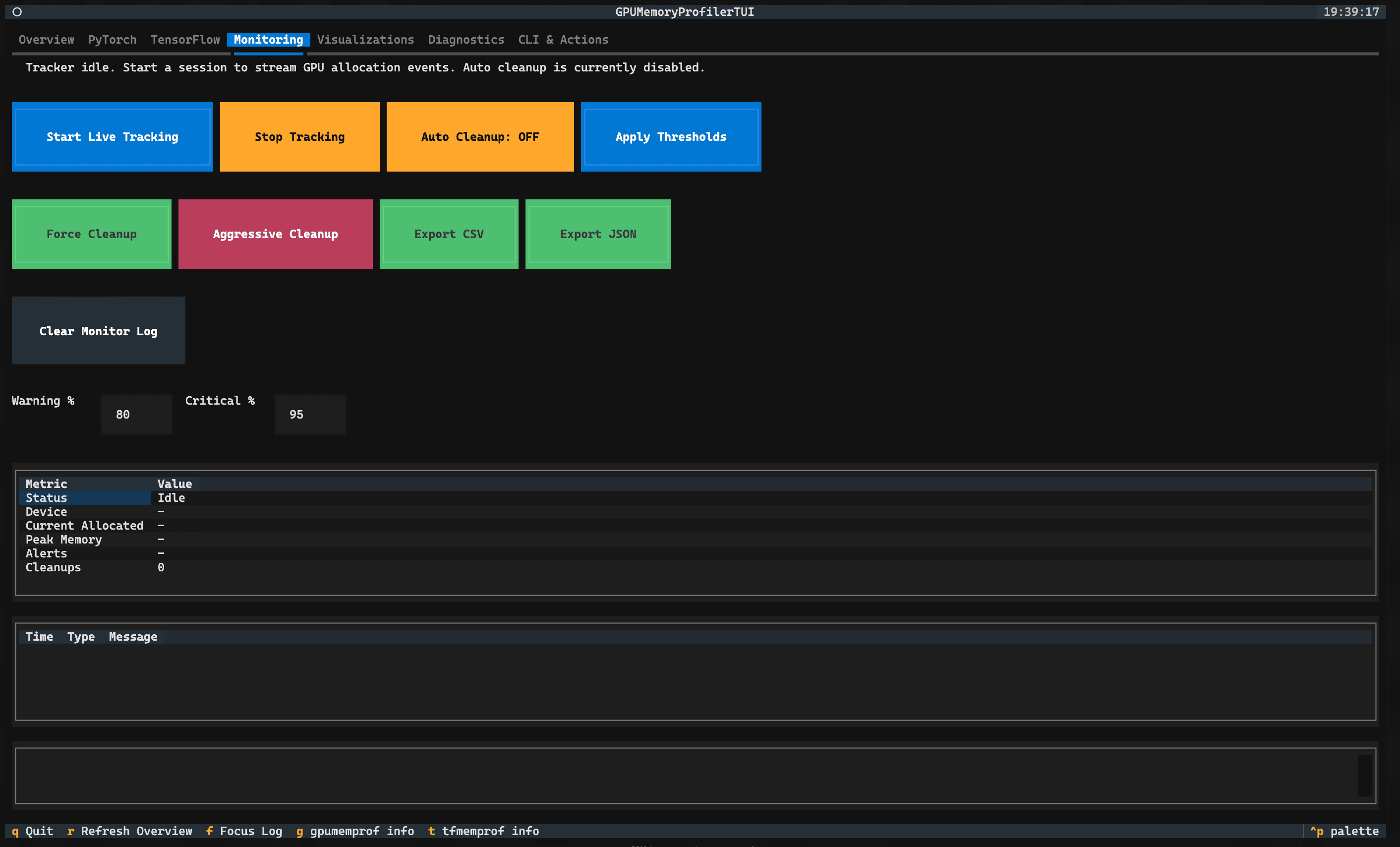
Most memory profilers give you a live view. You watch numbers while the process runs, and when it exits, the evidence goes with it. The next time you need to investigate the same behavior, you re-run the job, reconstruct the conditions, and hope the problem reproduces.
Stormlog is designed around a different assumption: that the most valuable debugging session is often the one that happens after the run ends, not during it. Maybe the run finished at 2am and you're looking at it in the morning. Maybe it was a distributed job across four ranks and you need to compare rank behavior without restarting everything. Maybe you need to share the evidence with a teammate who doesn't have access to the original machine.
The artifact layer is what makes any of that possible. Every tracked run produces a structured set of exportable files that can be reloaded into the TUI, analyzed by the CLI, piped into CI pipelines, or attached to a bug report — all without re-running the job that generated them.
This post explains what each artifact type contains, when you'd reach for it, and how the full set fits together as a team debugging workflow.
How Artifacts Are Generated#
Artifacts are produced at the end of any tracked session. After you've instrumented your training loop with MemoryTracker and called stop_tracking(), export calls write the event stream to disk:
from stormlog import MemoryTracker

tracker = MemoryTracker(
    device="cuda",
    sampling_interval=0.5,
    enable_alerts=True,
    job_id="run-001",
)

tracker.start_tracking()

try:
    # your training loop here
    pass
finally:
    tracker.stop_tracking()

# Export the raw event stream — JSON for programmatic use, CSV for tabular tools
tracker.export_events("artifacts/events.json", format="json")
tracker.export_events("artifacts/events.csv", format="csv")
You can also produce a telemetry file directly from the CLI by passing an output path to gpumemprof track:
gpumemprof track --duration 60 --interval 0.5 --output run.json --format jsonTimeline visualizations — the PNG and HTML plot files — are a separate step. They're generated via the TUI's Visualizations tab (which writes to ./visualizations) or through the MemoryVisualizer Python API:
from stormlog import MemoryVisualizer

visualizer = MemoryVisualizer(profiler)
visualizer.plot_memory_timeline(save_path="timeline.png")
visualizer.plot_memory_timeline(save_path="timeline.html")
Understanding this distinction matters: tracker.export_events() gives you the raw telemetry. The visual outputs require the additional visualization step. They're produced from the same underlying data, but they're not the same call.
The Core Artifact Types#
A complete tracked run can produce several artifact types, and each one serves a different audience and a different point in the debugging workflow.
events.json and events.csv#
These two files contain the same data in different encodings: the raw event stream from the tracking session. Every sample the tracker captured — timestamped, with allocation values, reserved memory, and any alert flags — is recorded here as an ordered sequence.
events.json is the right choice when you're loading artifacts programmatically, feeding them into another tool, or writing analysis scripts. The structured format makes it easy to parse specific fields, filter by time range, or join with logs from other systems. It's also the format that gpumemprof analyze accepts directly:
gpumemprof analyze artifacts/events.json --format txt --output analysis.txtevents.csv is the right choice when you're feeding data into a spreadsheet, a pandas DataFrame, or any tool that expects tabular input. Every row is one sample; every column is one field. The flat structure is easier to work with when you're doing exploratory analysis and want to slice, filter, or plot without writing a JSON parser first.
Both files follow Stormlog's canonical telemetry event shape (see the TelemetryEvent schema — exports use schema_version 2 or 3 depending on release), which keeps them compatible with the analyzer, the TUI, and downstream tooling. Every event carries schema_version, timestamp_ns, event_type, collector, allocator_allocated_bytes, allocator_reserved_bytes, device_used_bytes, and distributed identity fields (job_id, rank, local_rank, world_size) — whether or not you're doing distributed training.
The key thing to understand about both files is that they represent the unprocessed record of what happened. No aggregation, no classification, no interpretation — just the raw telemetry. All the higher-level signals (drift detection, spike classification, alert summaries) are derived from this foundation by the analyzer and diagnostics tools.
Diagnostic bundles from gpumemprof diagnose#
Running the diagnose command produces a directory rather than a single file:
gpumemprof diagnose --duration 5 --interval 0.5 --output ./artifacts/diagInside that directory you'll find environment.json (platform, PyTorch version, GPU info, fragmentation metrics), diagnostic_summary.json (current risk flags — high utilization, OOM count, fragmentation warning), telemetry_timeline.json (a short capture window in a simplified time-series format), and manifest.json (a structured index of what the bundle contains, when it was created, and whether risk was detected).
The manifest.json is particularly useful in CI contexts. It has a machine-readable risk_detected boolean and an exit_code field — gpumemprof diagnose returns exit code 0 for clean, 1 for failure, and 2 for memory risk detected. A CI step can check the exit code directly without parsing the manifest at all:
gpumemprof diagnose --duration 5 --output ./diag_output
# $? will be 0 (OK), 1 (failure), or 2 (memory risk)
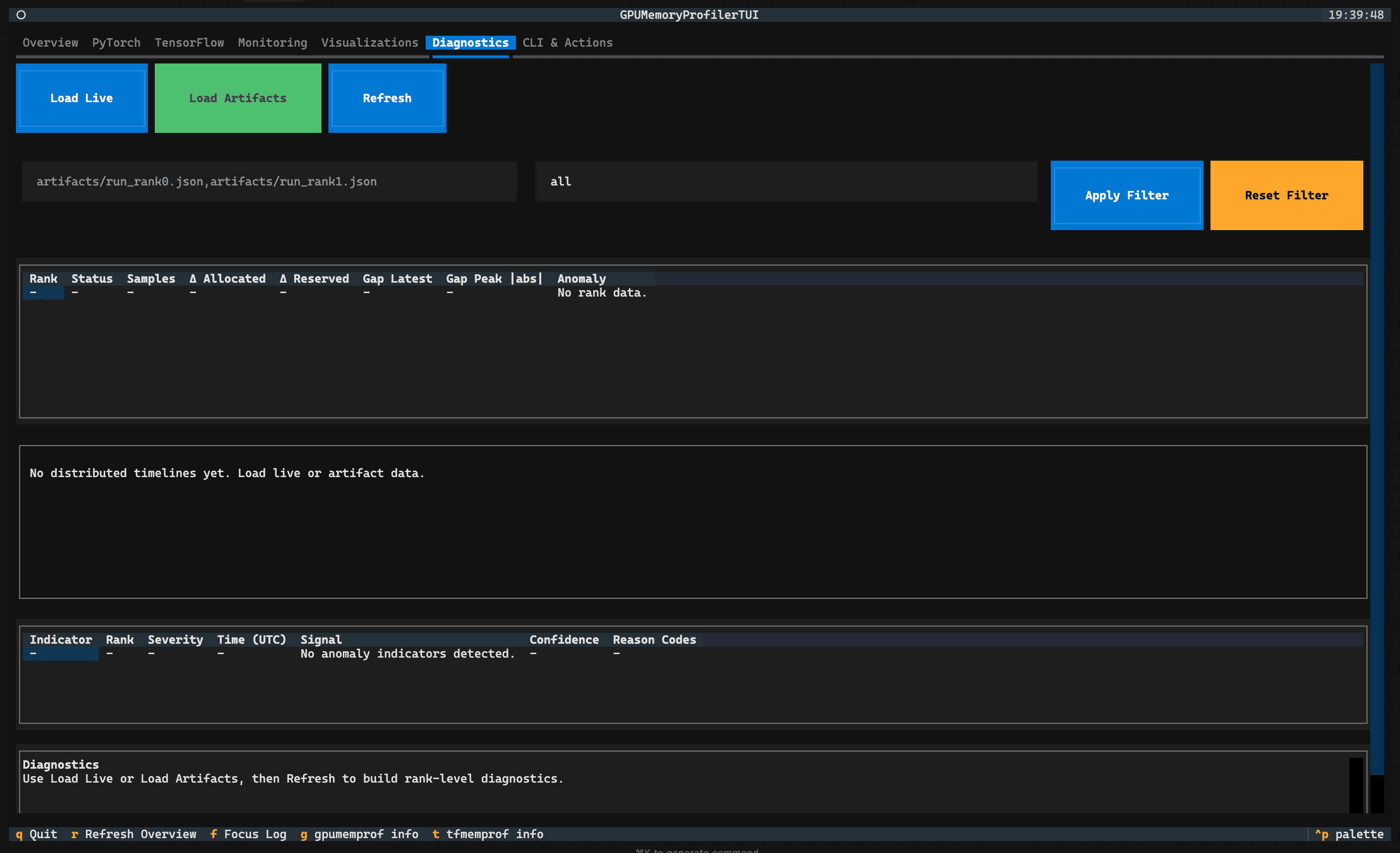
Diagnostic bundle directories are reloadable in the TUI Diagnostics tab — the artifact loader can read telemetry_timeline.json and synthesize comparable events from it, which means you don't need a full tracker export to get something useful into the diagnostics view.
Visual exports: timeline.png and timeline.html#
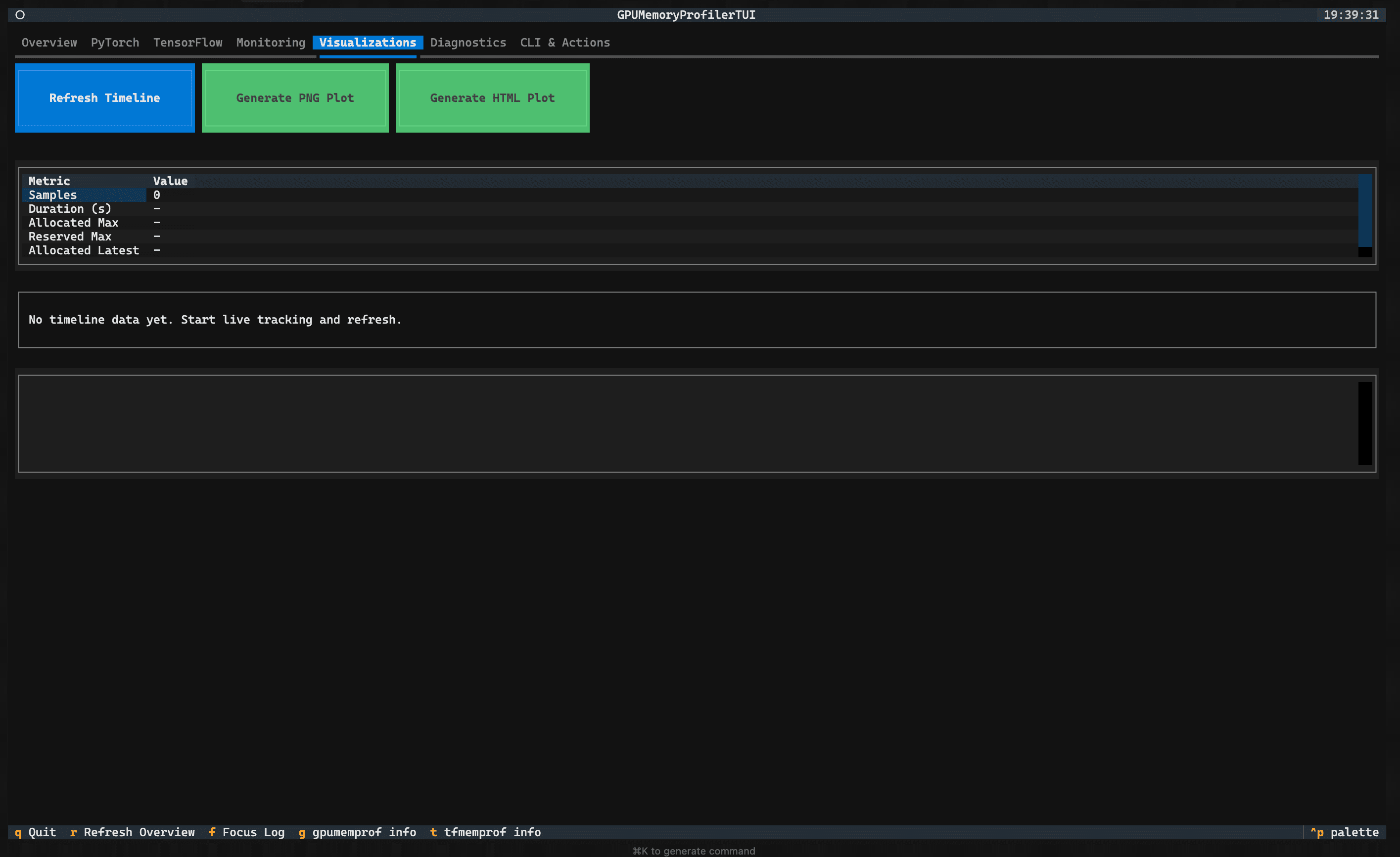
These are the human-readable outputs — the timeline data rendered as a static image and as an interactive plot. Both are generated from the same underlying telemetry and can be produced via the TUI Visualizations tab or the MemoryVisualizer API.
timeline.png is the right choice for attaching to pull requests, bug reports, documentation, or any context where a static image is easier to include than a file. It's a straightforward memory-over-time chart with allocated and reserved memory as separate series.
timeline.html is the right choice for interactive review. The HTML file is self-contained — it includes all the data and rendering logic inline, so it can be opened in any browser without a server, shared as an email attachment, or stored as a CI artifact. The interactive version lets you zoom into specific time windows, hover over data points for exact values, and compare allocation vs. reserved memory across the full session.
For cross-rank distributed runs, MemoryVisualizer also produces a combined timeline chart that aligns rank timelines on a shared clock and marks first-cause suspects:
from stormlog import MemoryVisualizer
from stormlog.telemetry import load_telemetry_events

all_events = []
for rank in range(4):
    all_events.extend(load_telemetry_events(f"artifacts/events_rank{rank}.json"))

visualizer = MemoryVisualizer()
visualizer.plot_cross_rank_timeline(events=all_events, save_path="cross_rank.png")
How the Artifacts Fit Together#
It helps to think of the artifact types as forming two layers. The raw layer — events.json and events.csv — is the complete unprocessed record. It's the source of truth for everything else. If you want to build something custom on top of Stormlog's data, this is where you start. The interpretive layer — diagnostic bundles and visual exports — is derived from the raw layer. Diagnostic bundles summarize the current risk state; visual exports render the event stream into something a person can read at a glance.
Understanding which layer you need for a given task helps you avoid loading more data than necessary. Checking whether a run had any memory risk doesn't require parsing the full event stream — the manifest.json exit code is the right artifact. Rebuilding the exact memory timeline for a custom analysis requires events.json, not the PNG. If you need to understand rank-level behavior in a distributed run, the cross-rank timeline plot gives you the fastest visual summary, but the underlying events.json files are what the analyzer actually operates on.
CI Pipeline Integration#
The artifact layer is what makes Stormlog useful in automated pipelines. The basic pattern is: run a training job or diagnostic with tracking enabled, then apply automated checks to the outputs.
The most straightforward CI check reads the gpumemprof diagnose exit code directly:
gpumemprof diagnose --duration 5 --output ./diag
# Exit code 2 means memory risk was detected
if [ $? -eq 2 ]; then
  echo "Memory risk detected — review diagnostic bundle"
  exit 1
fi
For more detailed checks, you can parse diagnostic_summary.json:
import json, sys

with open("./diag/stormlog-diagnose-TIMESTAMP/diagnostic_summary.json") as f:
    summary = json.load(f)

flags = summary["risk_flags"]
if flags["oom_occurred"]:
    print(f"OOM events detected ({summary['num_ooms']})")
    sys.exit(1)

if flags["high_utilization"]:
    ratio = summary["utilization_ratio"]
    print(f"High GPU utilization: {ratio:.0%}")
    sys.exit(1)
For regression tracking across runs, compare the slope and peak from the exported events against a stored reference:
import json

# Load the raw events and compute summary stats
events = json.loads(open("artifacts/events.json").read())
allocated = [e["allocator_allocated_bytes"] for e in events if e["event_type"] == "sample"]

if allocated:
    peak_gb = max(allocated) / (1024**3)
    reference_peak_gb = 0.5  # from last known-good run

    if peak_gb > reference_peak_gb * 1.2:
        print(f"Memory regression: peak {peak_gb:.2f} GB vs reference {reference_peak_gb:.2f} GB")
        exit(1)
The timeline.html output can also be archived as a CI artifact for later review — most CI platforms (GitHub Actions, GitLab CI) support artifact storage, which means every run leaves behind an interactive memory timeline you can open months later if a regression surfaces.
A Practical Workflow for Teams#
Putting the artifact layer into a daily team workflow looks something like this. When a training job finishes, export the event stream to a shared location. The raw events go into whatever storage your team uses — a network drive, an S3 bucket, or a CI artifact store. The diagnostic bundle gets checked automatically; any exit code 2 triggers a Slack notification or a CI flag. The timeline.html gets attached to the run record for async review.
When someone reports an OOM or a performance regression, the investigation starts with the artifact bundle from the affected run — no reproduction required. The TUI loads the events in the Diagnostics tab, gap analysis shows where the growth pattern started, and comparison against the most recent clean run's artifacts shows exactly what changed.
This is a fundamentally different debugging posture than the standard "reduce batch size until it stops crashing" loop. The evidence is preserved, the workflow is repeatable, and the diagnosis doesn't depend on reproducing the exact failure conditions.
What's Next#
The artifact layer is the foundation for distributed diagnostics, where events from multiple ranks are loaded simultaneously to trace anomalies back to their source rank. That use case — multi-GPU training jobs, rank-aware attribution, cross-rank timeline visualization — is covered in the next post in this series.
For everything covered here, the full API reference is in the documentation, and working examples are in the repository under examples/.