This guide gets you from zero to a working Stormlog session. It covers the install options, the correct import paths, and the three ways to use the tool — CLI, Python API, and TUI — with enough context to know which one to reach for first.
Requirements: Python 3.10+, and either PyTorch 1.8+ or TensorFlow 2.4+ depending on your framework.
Install#
The base install is one line:
pip install stormlogThat gets you the core package. Stormlog also ships optional extras depending on what you need:
pip install "stormlog[viz]"          # Visualization exports (PNG, HTML timelines)
pip install "stormlog[tui,torch]"    # Interactive TUI with PyTorch support
pip install "stormlog[torch]"        # PyTorch-specific extras
pip install "stormlog[tf]"           # TensorFlow-specific extras
pip install "stormlog[all]"          # Everything
One important note on the TUI: stormlog[tui] alone isn't enough because the TUI currently imports PyTorch at startup. If you want the full interactive terminal interface, install stormlog[tui,torch].
If you want to install from source or contribute to the project:
git clone https://github.com/Silas-Asamoah/stormlog.git
cd stormlog
pip install -e ".[dev,test,all]"
Note that the examples/ package — including the quickstart and capability matrix scripts — is only available in a source checkout. A plain pip install stormlog does not include it.
How Imports Work#
The package you install is called stormlog. That's also the top-level Python module you import from. Everything lives under the stormlog namespace:
# PyTorch workflows
from stormlog import GPUMemoryProfiler, MemoryTracker, CPUMemoryProfiler

# TensorFlow workflows
from stormlog.tensorflow import TFMemoryProfiler
The CLI entry points are separate commands that ship with the package but live outside Python's import system:
| What you want to do | What you use |
|---|---|
| Install the package | pip install stormlog |
| Launch the TUI | stormlog (terminal command) |
| Use PyTorch profiling APIs | from stormlog import GPUMemoryProfiler, MemoryTracker |
| Use TensorFlow profiling APIs | from stormlog.tensorflow import TFMemoryProfiler |
| Run PyTorch CLI commands | gpumemprof info, gpumemprof track, etc. |
| Run TensorFlow CLI commands | tfmemprof info, tfmemprof diagnose, etc. |
Interface 1: The CLI#
The CLI is the fastest path to verify your environment and produce a real artifact without touching your training code. Start here if you're new to the tool or want a quick diagnostic before committing to deeper instrumentation.
Verify your environment#
gpumemprof infoThis prints a platform summary — device type, available memory, framework version, backend status. It's useful before anything else to confirm the tool can see what it needs to see. Works on CUDA, MPS, and CPU-only machines.
For TensorFlow:
tfmemprof infoRun a live tracking session#
gpumemprof track --duration 30 --interval 0.5 --output run.json --format jsonThis monitors GPU memory for 30 seconds, sampling every 0.5 seconds, and writes the event stream to run.json. Adjust --duration to fit your workload.
Analyze saved telemetry#
Once you have an artifact, you can analyze it without re-running the job:
gpumemprof analyze run.json --format txt --output analysis.txtThe analyzer classifies hidden-memory gap patterns — persistent device-vs-allocator drift using linear regression, transient gap spikes using z-scores, and distributed first-cause signals when multi-rank telemetry is present — then writes a summary you can attach to a bug report or share with a teammate.
Run a diagnostic bundle#
gpumemprof diagnose --duration 0 --output ./diag_outputThis captures an environment snapshot and risk summary into a directory. --duration 0 runs a point-in-time snapshot rather than a time-windowed capture, so it is useful for environment triage but does not produce timeline samples for the TUI.
If you want a diagnose bundle that can rebuild a timeline in the TUI diagnostics tab, capture a short window instead:
gpumemprof diagnose --duration 5 --interval 0.5 --output ./diag_outputInterface 2: The Python API#
Use the Python API when you need profiling instrumentation inside a training loop — threshold alerts, per-step tracking, OOM flight recording, or saved artifacts tied to specific runs.
PyTorch: GPUMemoryProfiler#
GPUMemoryProfiler targets CUDA and ROCm-backed PyTorch runtimes. If you're on CUDA, this is the primary profiling class:
import torch
from stormlog import GPUMemoryProfiler

profiler = GPUMemoryProfiler()
device = profiler.device

model = torch.nn.Linear(1024, 128).to(device)

def train_step():
    x = torch.randn(64, 1024, device=device)
    y = model(x)
    return y.sum()

# Profile a single function call
profile = profiler.profile_function(train_step)
summary = profiler.get_summary()

print(f"Peak memory: {summary['peak_memory_usage'] / (1024**3):.2f} GB")
You can also use the decorator or context manager form:
from stormlog import profile_function, profile_context

# As a decorator
@profile_function
def train_step():
    ...

# As a context manager
with profile_context("train_epoch"):
    for batch in dataloader:
        ...
PyTorch: MemoryTracker (for continuous training runs)#
When you need memory tracked continuously across an entire training session — not just a single function call — use MemoryTracker. This is the right tool for catching gradual leaks:
from stormlog import MemoryTracker

tracker = MemoryTracker(
    device="cuda",          # or "mps" for Apple Silicon
    sampling_interval=0.5,  # seconds between samples
    enable_alerts=True,
    job_id="run-001",
)

# Set thresholds for warnings and critical alerts
tracker.set_threshold("memory_warning_percent", 70.0)
tracker.set_threshold("memory_critical_percent", 85.0)

tracker.start_tracking()

try:
    for epoch in range(num_epochs):
        for batch in dataloader:
            # your training step here
            pass
finally:
    tracker.stop_tracking()

# Export the full event stream
tracker.export_events("events.json", format="json")
tracker.export_events("events.csv", format="csv")
For distributed training, pass rank, local_rank, world_size, and optionally job_id into MemoryTracker (or the matching gpumemprof track flags) on each process so exports can be merged or loaded together for rank-aware analysis.
On Apple Silicon (MPS), use device="mps" with MemoryTracker. GPUMemoryProfiler is CUDA/ROCm-specific.
If you're on a CPU-only machine or want to test a profiling workflow before moving to GPU infrastructure, CPUMemoryProfiler and CPUMemoryTracker are available directly from stormlog and work the same way.
TensorFlow#
from stormlog.tensorflow import TFMemoryProfiler

profiler = TFMemoryProfiler(enable_tensor_tracking=True)

with profiler.profile_context("training"):
    model.fit(x_train, y_train, epochs=1, batch_size=32)

results = profiler.get_results()
print(f"Peak memory: {results.peak_memory_mb:.2f} MB")
print(f"Snapshots captured: {len(results.snapshots)}")
profile_context is a context manager that brackets the code you want to measure. Everything inside it gets tracked.
For a TensorFlow CLI diagnostic:
tfmemprof diagnose --duration 0 --output ./tf_diagInterface 3: The TUI#
The TUI is a terminal-native workspace built with Textual. It brings monitoring, diagnostics, visualizations, and CLI actions into one interface — no browser required.
Install the TUI with PyTorch support and launch it:
pip install "stormlog[tui,torch]"
stormlog
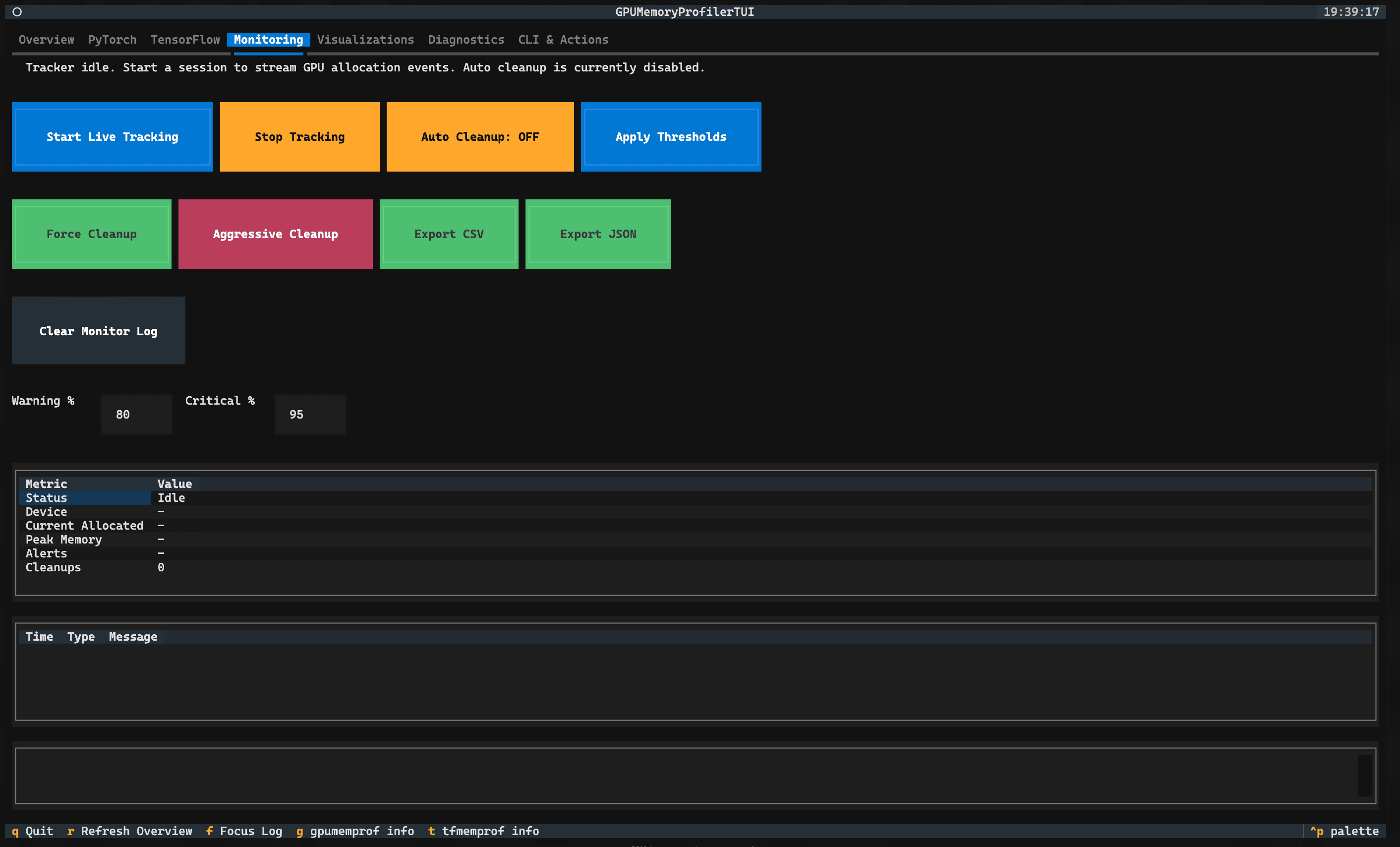
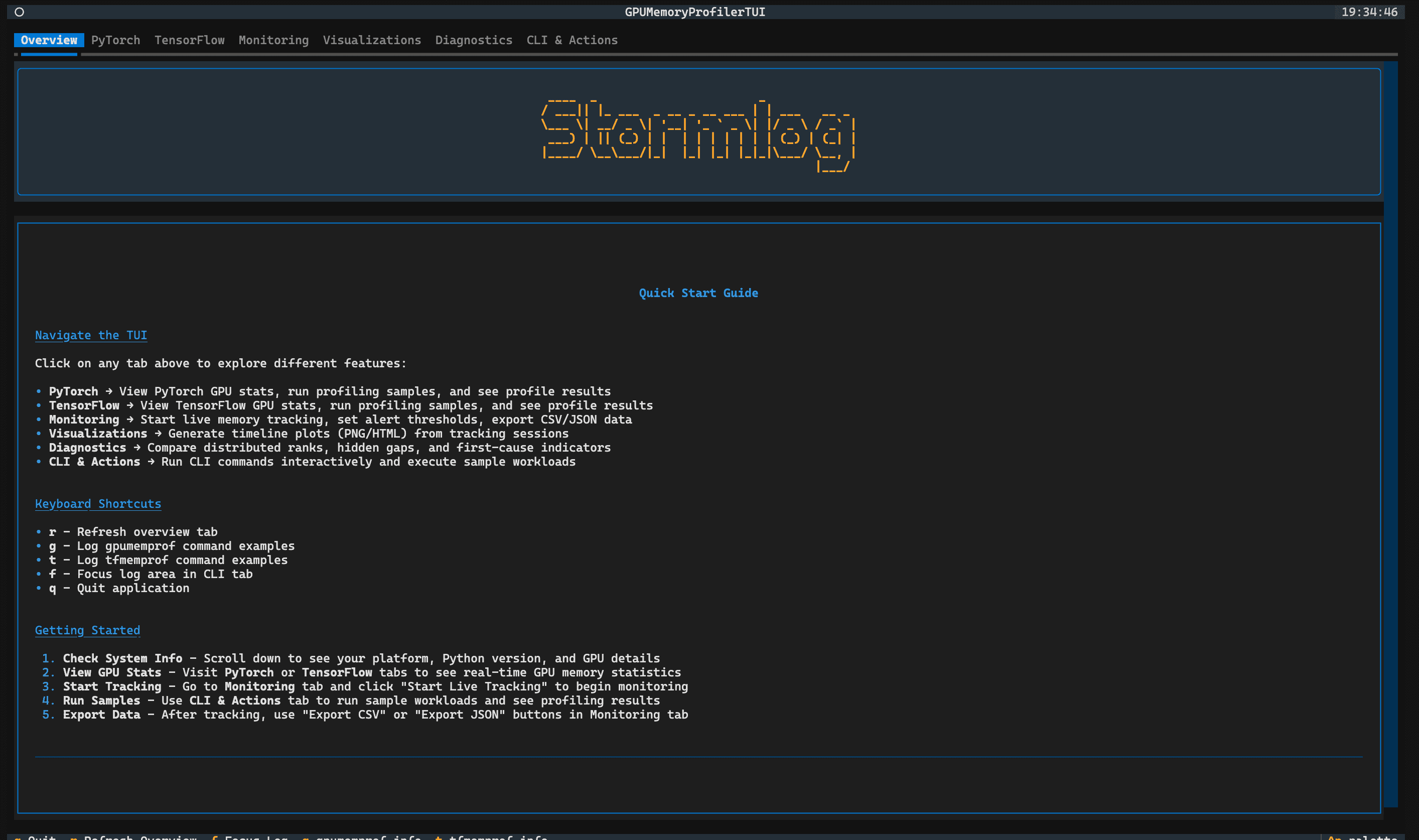
The TUI has seven tabs. Overview orients you with a platform summary, keyboard shortcuts, and navigation into every other section. PyTorch and TensorFlow tabs give you framework-specific profiling controls directly inside the interface. Monitoring is for live tracking — start and stop sessions, set warning and critical thresholds, and export event streams to ./exports as CSV or JSON. Visualizations generates timeline plots and HTML artifacts from the current session or a loaded artifact. Diagnostics is where you load saved artifacts for post-hoc inspection, including distributed multi-rank views. CLI & Actions exposes the same CLI commands from inside the TUI so you can run gpumemprof diagnose or gpumemprof analyze without switching back to the terminal.
The keyboard shortcut to navigate between tabs is Tab / Shift+Tab. Full keyboard guidance is on the Overview tab when you launch.
Verify the Full Install#
To confirm everything is working before you instrument a real training loop, run the info command:
gpumemprof infoFor a more comprehensive smoke test, you need a source checkout:
# Requires: git clone + pip install -e ".[dev,test,all]"
python -m examples.cli.quickstart
python -m examples.cli.capability_matrix --mode smoke --target both --oom-mode simulated
The capability matrix exercises the CLI, both profiler APIs, and OOM handling in simulated mode. It writes artifacts you can then load in the TUI to confirm the full pipeline end to end.
Which Interface to Start With#
If you want to verify your environment quickly or produce a diagnostic artifact without modifying any code, start with the CLI. gpumemprof info then gpumemprof track is a two-command path to your first saved artifact.
If you're instrumenting a specific training loop and need threshold alerts, per-run telemetry, or OOM flight recording, use MemoryTracker from the Python API. It adds around ten lines to your existing training code.
If you prefer an interactive workspace — especially for loading and comparing saved artifacts, or for teams where multiple people need to inspect the same run — the TUI is the right surface. It reuses the exact same artifacts produced by the CLI and Python API, so there's no switching cost between interfaces.
Next Steps#
The full documentation covers the complete API surface, architecture details, and TUI screen-by-screen guidance. The repository has working examples in the examples/ directory for both frameworks. For a concrete end-to-end walkthrough — leaky training run, Stormlog diagnosis, fix, and comparison — see the next post in this series: Catching a Real Memory Leak on Apple Silicon.